
This post is documenting an issue with Microsoft Edge where recent updates affect the Management Reporter web viewer, specifically the rendering of the buttons at the bottom of the screen. Some of you reading this might have seen my post about it on LinkedIn, but since I have a potential temporary resolution now, I figured it would make sense to write a proper blog post about it.
The issue
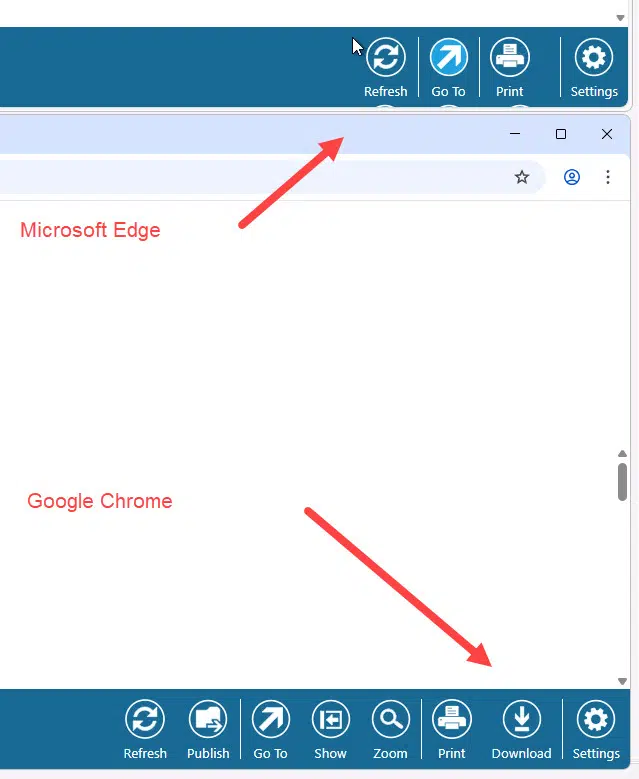
The buttons for things like downloading a report were missing in Edge after the recent(ish) Edge updates. However, in other browsers, like Google Chrome pictured below, the buttons rendered just fine. Apparently they would also render just fine in another non-Chromium browser like Firefox but the client I was working with didn’t have that browser installed for me to test it.
One temporary solution – IE Mode
A Microsoft Technical Support Engineer comments on my LinkedIn post with a solution, which is documented below in my screenshots after I tested that this appears to work, albeit the settings would only persist for 30 days. In my screenshot below, you will see an expiry date for the URL so if I need to use those buttons on a monthly basis – which would be the typical cadence for Management Reporter users – then worst case scenario you may need to put that URL in every 30 days. UGHHHHHH.
Configuring IE mode in Microsoft Edge Settings
Open Microsoft Edge, go to Settings in the menu under the elipsis, and click on Default Browser on the left hand side (or select from the left hand menu if the display is in menu format on your machine).
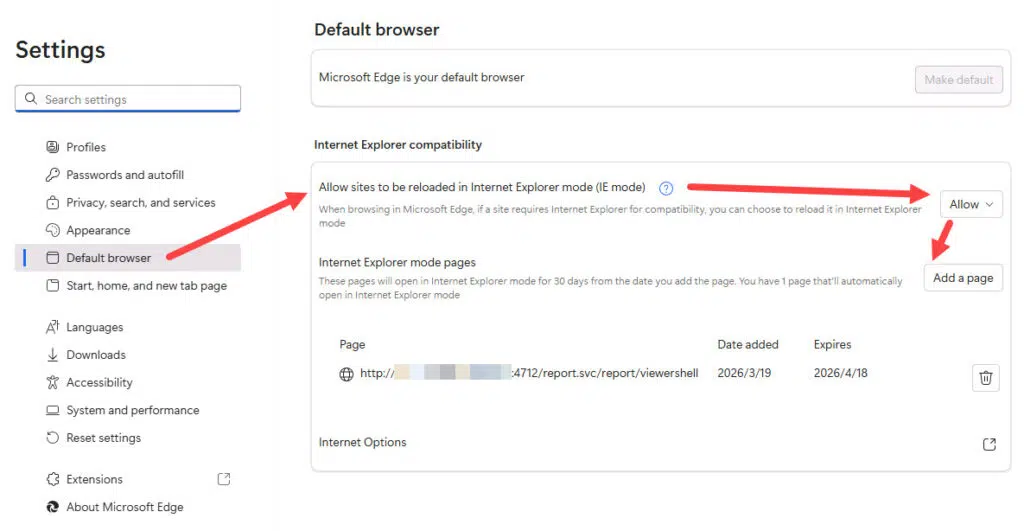
- Select the option beside “Allow sites to be reloaded in Internet Explorer mode” to Allow.
- A “Restart” button will appear if you change this setting. Click it to re-launch the browser. It should return to this same page.
- Click on Add a page beside “Internet Explorer mode pages” to identify which sites need to be rendered in IE Mode.
- Paste in the URL of your server up to and including the “viewershell” portion, but ignore the actual parameter that follows with a report GUID. The format that worked for my client is this. Replace YOURSERVERNAME and PORT to your own settings based on a generated URL from a Management Reporter report.
http://YOURSERVERNAME:PORT/report.svc/report/viewershell
OR it might be
https://YOURSERVERNAME:PORT/report.svc/report/viewershell
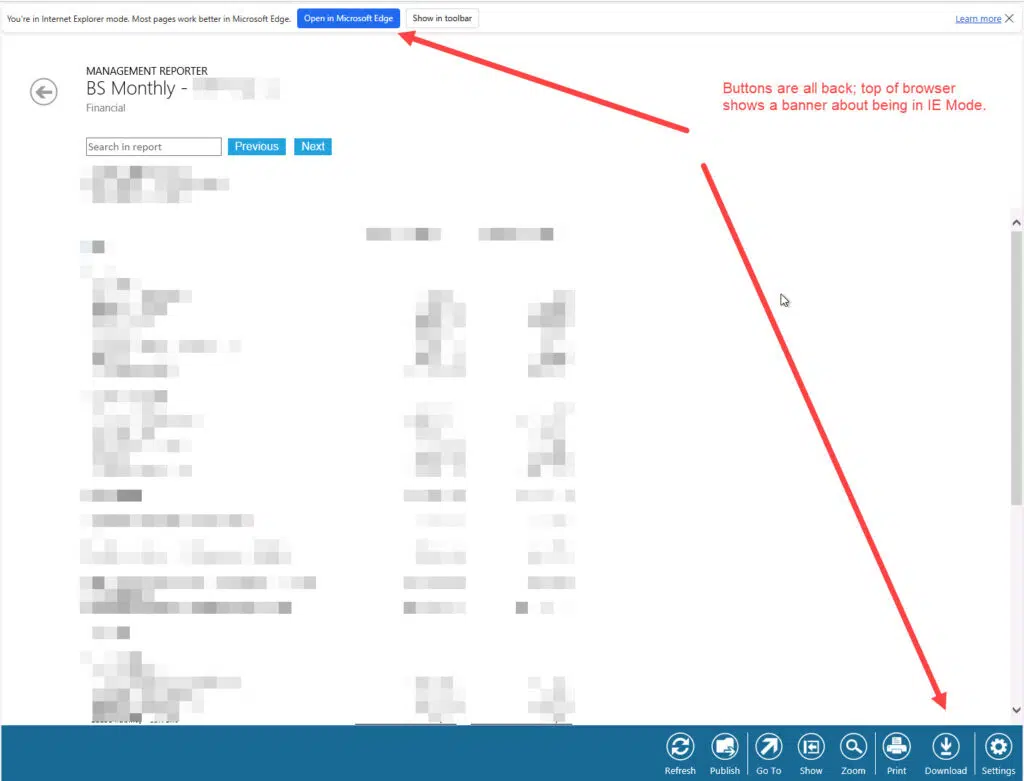
This is what it should look like when you’re done, after generating another report to the web viewer:
Intranet Zone
I am not documenting adding the server URL to the Intranet zone in Internet Options as in my case the client was already configured to include that server in that zone. Here are the steps, based on the notes from the LinkedIn post:
- Open Internet Options (inetcpl.cpl) from the Start Menu.
- Go to Security > Local Intranet > Sites > Advanced.
- Manually add the MR Web Viewer URL here. NOTE: in this case typically you would only put the part of the URL up to and including the port.
Further guidance from Microsoft
Terry Heley also commented on my LinkedIn post as they have been receiving more calls about this issue too. They have a blog post about challenges with downloading Management Reporter reports including some temporary workarounds for this specific issue (that was unrelated to the original content of that blog post). That post is: https://community.dynamics.com/blogs/post/?postid=6538e753-5409-4c1e-97f6-1946c1e16f63.
In that blog post is a link for IT departments who may be able to set the IE Mode more permanently via group policy. I have no experience with this and can provide no further guidance other than the link. Ideally if the URLs that should be rendered in IE Mode can be set permanently, that would be better than updating it every 30 days! https://learn.microsoft.com/en-us/deployedge/edge-ie-mode-policies
Summary
Management Reporter is in maintenance mode already and this issue will not be fixed. There are other workarounds if your only need is downloading published reports to Excel for example (using Report Viewer instead of the web viewer).
Ultimately, this is a great example of what may happen after the end of life date for Microsoft Dynamics GP, where some random update causes an issue with functionality that is used every day, week, or month. In this case, Management Reporter is relying on older web technologies and as modern browsers are updated to be more secure, or whatever updates are done that broke this, the more likely it will be that an issue like this will occur and will not be fixed. There is a workaround for this – two of them (configure IE mode or use Report Viewer for additional printing/exporting options). However, that may not always be the case, and it is a good reminder that the 2029 end of life date is approaching and if your organization does not have a plan, this might be a good wake up call to start thinking about it.