
I stumbled upon a gem of a thing one day, while troubleshooting something for a client. I’d built a template in Excel for them to do some analysis and calculations that, in part, relied on a field that was not always present in the dataset.
Brief background
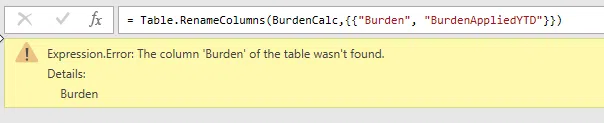
The TL;DR1 version is one of my steps in Power Query was renaming a column. When I built this template for the client, all the columns were present in the data, and all was good, until January this year when the data didn’t exist yet in the new fiscal year. This happens to be a financial dataset, where not all activities occur right away in the year, so some data that I use in the analysis may not be in the dataset yet. The users refreshed the template and got this error:

When I investigated in Power Query Editor, I get the same error:
MissingField.Type to the rescue
Up until now, I didn’t realize that MissingField was a parameter that even existed, I’ve happily right-clicked and renamed columns for years and when I ran into errors like the above, I usually had to find some creative way to get around it. It turns out there is an optional parameter that solves this really easily. By default, the missing field handling is that a missing field results in an error, as I received above. The MissingField.Type parameter is visible in Intellisense, if you know to continue typing past the initial two parameters.

The values showing in Intellisense are as shown above, but I’m ignoring the one called MissingField.Type (where I presume you would indicate a numeric value instead).
- MissingField.Error is the default so IMHO there is not much point in specifying that in this function.
- MissingField.Ignore would be the equivalent of “Rename this column if it exists”.
- MissingField.UseNull is what I chose to use in my use-case, which adds the column with all null values.
These are the functions I found MissingField exists with, but I may have missed some in the list of all Table and Record functions that exist.
- Record.RemoveFields
- Record.RenameFields
- Record.SelectFields
- Record.TransformFields
- Table.RemoveColumns
- Table.RenameColumns
- Table.ReorderColumns
- Table.SelectColumns
- Table.TransformColumns
Summary
Once I added that 3rd parameter to the Table.RenameColumns step, the issue went away, and the column I was attempting to rename was added as a column (albeit with all null values, which was OK for my situation). The code would look like this in M:
= Table.RenameColumns(MyPreviousStep,{{"MyColumn", "MyNewColumnName"}}, MissingField.UseNull)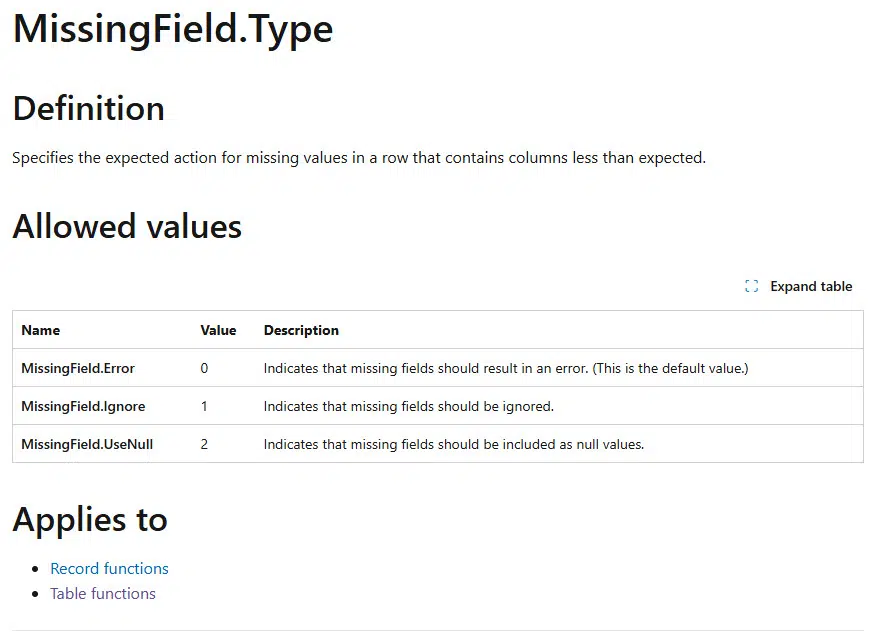
The Microsoft Learn (documentation) indicates this is available in various Record functions and Table functions. Check out https://learn.microsoft.com/en-us/powerquery-m/missingfield-type for more details.
- TL;DR = “Too long, didn’t read” ↩︎