
I’m starting a #TipTuesday series and this is my first one in the series.
Back in 2010, in one of my first-ever blog posts, I wrote about some tips to handle dates. Today I’ll expand to include a few other gems that I find many users don’t already know!
User Date
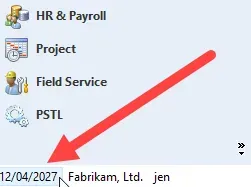
Let’s start with the basics. The “User Date” in Dynamics GP defaults to “today”, the system date (except in the Fabrikam sample company). The User Date is the default transaction date in any window in GP.
The best way to set a default working date is to change this user date when first opening Dynamics GP. This time of year, it’s very common to be working on December month-end entries and to prevent or reduce the chance of wrong year date errors, I highly recommend changing the User Date to 31/12/2017, for instance. (I also recommend that Fiscal Periods that are not in use get closed so that will eliminate some date issues).
Quick Date Change Tips
Too often I see users typing the entire date out including slashes! They don’t need to do that.
- If they’re working in the same MONTH and YEAR, type in the DAY and the date field will default to the proper date. In my example above, I’m on Fabrikam time, April 12, 2027 (& my system date format is DD/MM/YYYY). If I type in “22”, I will get 22/04/2027.
- If working in the same YEAR but not the same month, type in the DAY and MONTH and the year will default. If I type in “1503”, I will get 15/03/2027.
- These examples are based on a DD/MM/YYYY format.
In both cases, I don’t have to type in any slashes in the date.
Navigating the Date Lookup
Here are some tips to quickly navigate when changing multiple months away from the current User Date. Please don’t click on the arrows to change back 8 months every time! 🙂
Click on the Date box and this pop-up shows the current month.
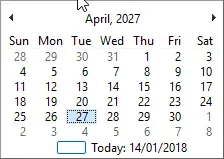
Click on the ‘Month, Year” area to quickly jump back several months in only 2 clicks!
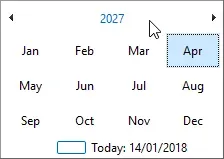
Click on the Year to jump to the current decade.
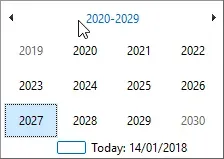
And it gets even better, although at this point most users are not entering transactions back this far! Click on the decade to get the current century.
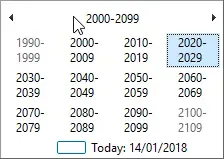
Today
And, lastly, sometimes one gets stuck in an abyss of dates, have no fear! Click on “Today” at the bottom to quickly jump back to today’s date. The odd thing about this: “Today” actually means today, not the User Date! Go figure…