
Today’s #TipTuesday post is for anyone who might be running more than one local instance of SQL Server. I often have at least a couple of instances on my laptop, as historically I would want to have the ability to mimic some client installs, as close as I can. While I am no longer a consultant, I will continue to do this so that I can have an instance that somewhat resembles what version of SQL Server and Dynamics GP we use at work + the latest version of GP with all the latest things installed. For blogging alone, I want to have the latest and greatest to play with and learn what’s new.
Running multiple instances of SQL
For those who run multiple instances of SQL Server for development or test purposes, it’s quite likely that all of them don’t need to be running all the time. Multiple services can be involved and that simply adds some overhead to the computer if they don’t need to be running all the time.
So… I set up batch files for starting and stopping the instances of SQL that I’ve got running. When I want to spin up an install of Dynamics GP, I simply execute the batch file to turn on the SQL instance I need for that version and when I’m done, I run another one to stop it. It’s quick and painless.
Batch File structure
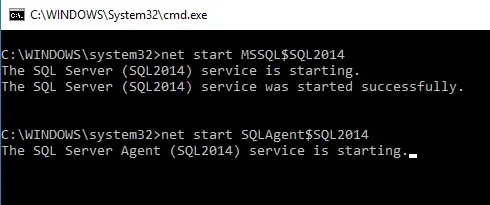
The format for starting SQL Server looks like this: “net start MSSQL$ABCD” where ABCD is the instance name. I put in the net start command for SQL Agent too since I’m often testing things where I want to test jobs or other agent tasks as well.
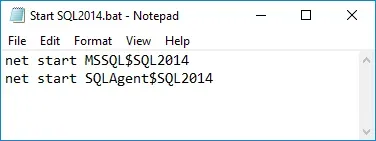
Running this batch file produces this, but the window closes automatically when the command is complete:
The format for stopping SQL Server looks like this: “net stop MSSQL$XXXXX” and again, the XXX is the instance name.
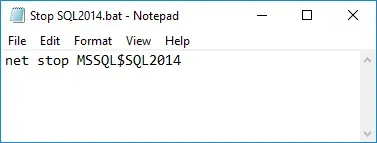
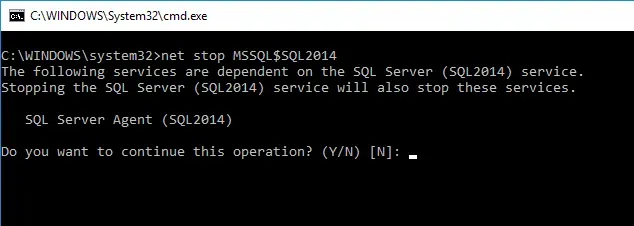
When running this one, note it doesn’t specify anything about SQL Agent, it will recognize if SQL Agent is started and prompt to stop it as part of this. I left it this in intentionally although if I don’t want to have to type Y every time I could have put a net stop line in here for the agent too.
That’s it for this tip…